Here is a folder I used to keep on my computer. I suspect you have one like it.
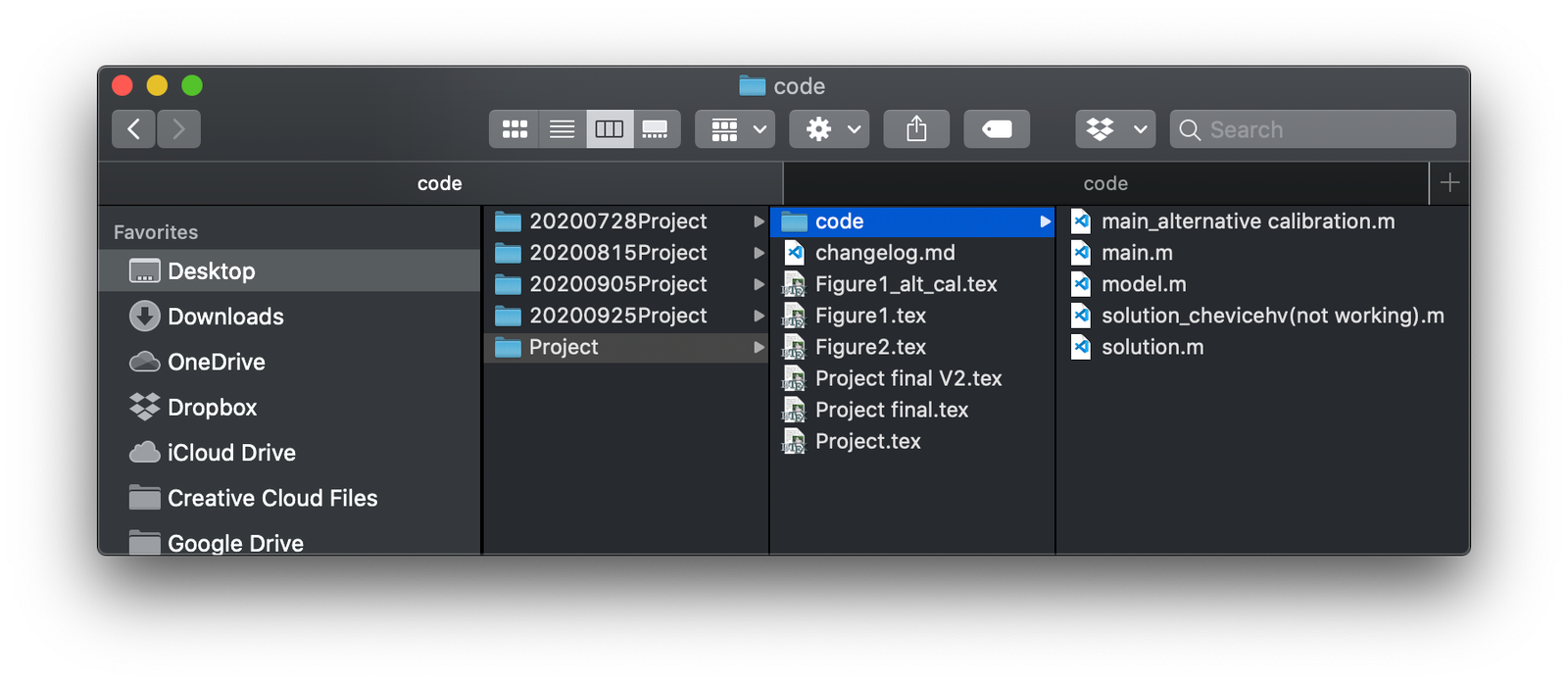
Every folder is a snapshot of the project on some date. Every file with “final” in its name was final until it wasn’t. One script is labelled “not working”, and I no longer remember why I kept it. Somewhere in there is the version of the code that produced the figures in the draft I sent to my advisor, and I couldn’t tell you which one.
This post is a short version of a talk I gave to economists about version control, and about Git in particular. The original slides are in Spanish.
Our projects are software projects now
Not long ago a research project was a paper and maybe a do-file. Today it is rarely one file. It has text, data, tables and figures, and programs in Stata, MATLAB, Python, R or EViews. It usually has more than one author. More and more, the output is not a static document but a web app or a dashboard.
That is the situation software developers have been in for decades: many files, many people, and a constant need to move forward without breaking what already works. They have spent those decades building tools for it. Economists mostly haven’t adopted them, and we pay for it in three ways:
- Innovating is risky. Trying a new specification means editing code that works. If the experiment fails, getting back to where you were depends on memory and on how disciplined you were about copying folders.
- Collaboration and replication suffer. Emailing files, sharing a Dropbox folder, or using Word’s track changes all work up to a point. None of them tells you which version of the code produced which result.
- History gets lost. Usually in a folder called
old. Or in the code itself, as hundreds of commented-out lines that “might be useful later”. I call this computational Diogenes syndrome: hoarding dead code because deleting it feels like losing it.
Version control solves all three. One caveat before going further: version control is designed for code and text, not for data. Large or binary files belong somewhere else.
A little vocabulary
Version control systems share a common vocabulary, the same way most programming languages share if, for and while. Three words go a long way:
- A commit is a snapshot of the project at a moment in time, with a message saying what changed and why.
- A repository (“repo”) is the whole project, including its full history of commits.
- The working copy is the version of the project you are currently looking at and editing.
The important word is commit. It is not an autosave. You decide when a change is ready and commit to it, the way you would sign off on a version. Your editor can keep saving temporary copies as it likes; version control works on top of that and doesn’t interfere.
Systems differ in where the repository lives:
- Local systems keep the repository on your computer only. They track history but don’t help you collaborate.
- Centralized systems keep the repository on a server and give each person a working copy. Everyone commits to the server and updates from it. Collaboration is easy, but everything depends on that one server.
- Distributed systems give every person a complete copy of the repository, history included. You commit locally, then push your commits to a shared server; your coauthors pull them from there. There are a couple more steps, but nothing is lost if the server dies, and you can browse the whole history offline.
The distributed model won. Git, the system almost everyone uses today, is distributed.
Git is not GitHub
Git is software that you install on your computer. It was written in 2005 by Linus Torvalds to manage the development of Linux, and it is now by far the most widely used version control system. You don’t need a server or an internet connection to use it. You may already have it: it ships with macOS’s command line tools, with Anaconda, and with recent versions of MATLAB. Type this in a terminal to check:
$ git --version
git version 2.39.5 (Apple Git-154)
GitHub is a website built on top of Git. It hosts repositories so people can share them, and adds what a team needs around the code: access control, issue tracking, task boards, automated builds and wikis. Think of it as a social network for Git repositories. GitLab and Bitbucket do the same job. You can use Git without any of them, but a shared server is what makes collaboration painless.
A worked example
You can use Git through the command line or through a graphical interface. The basic workflow needs only five to ten commands. Most documentation is written for the command line, so it is worth seeing what they are even if you end up clicking buttons.
Say we have a small MATLAB project in ~/Desktop/project: a script main.m that runs a model, a function solution.m that solves it, and a report Report.tex.
Start a repository(steps 1–2). Go to the folder and initialize it:
~ $ cd Desktop/project
~/Desktop/project $ git init
Initialized empty Git repository in /Users/you/Desktop/project/.git/
That creates a hidden .git folder, where Git keeps the entire history. Nothing else in your folder changes. If you ever want to stop using Git, delete that folder. If the project already exists somewhere else, such as on GitHub, you clone it instead, which downloads the files along with their full history: git clone <url>.
Make the first commit(steps 3–4). Committing is a two-step process. First you choose which changes go into the snapshot by adding them to the staging area. Then you commit them with a message:
~/Desktop/project $ git add main.m solution.m Report.tex
~/Desktop/project $ git commit -m "First version of the model and report"
[main (root-commit) f026d7e] First version of the model and report
 3 files changed, 48 insertions(+)
Experiment on a branch(steps 5–8). Now we want to see how alternative parameter values change the results. In the old world, this is the moment we would copy the folder or create main_alternative calibration.m. Instead, we create a branch, a parallel line of work that leaves main untouched:
~/Desktop/project $ git switch -c alt-parameters
Switched to a new branch 'alt-parameters'
# ...edit main.m...
~/Desktop/project $ git add main.m
~/Desktop/project $ git commit -m "Try alternative parameter values"
Fix a bug in the right place(steps 9–12). While experimenting we find a bug in solution.m. The bug isn’t specific to the experiment: it is in the code everyone uses. So the fix belongs on main, especially if other people are working on the project. We fix the file, switch to main (the uncommitted change comes with us), and commit it there:
~/Desktop/project $ git switch main
M       solution.m
Switched to branch 'main'
~/Desktop/project $ git add solution.m
~/Desktop/project $ git commit -m "Fix sign error in solution.m"
Bring the fix into the experiment(steps 13–14). Finally we go back to our branch and merge main into it, so the experiment also runs on the corrected code:
~/Desktop/project $ git switch alt-parameters
~/Desktop/project $ git merge main -m "Merge main: fix in solution.m"
If the experiment works out, we merge alt-parameters into main. If it doesn’t, we delete the branch and main is exactly as we left it. Either way, there’s no old folder, no “final V2”, and every result can be traced back to the commit that produced it.
The animation in the figure below runs the whole example, from an empty folder to a merge. The right panel shows what Git sees at each step: the history, the files you have changed, and what is staged for the next commit. The step links in the paragraphs above jump it to the matching point.
The worked example, step by step
Habits that help
Version control doesn’t replace good organization. The bad habits we have in our digital lives tend to come along into Git, and they can get worse if we don’t notice them. There is no single right way to work: two coauthors need less structure than a team of fifty. A few practices help almost everywhere:
- Commit often, and write messages that mean something. “Final version” says nothing. “Add robustness check with quarterly data” tells your future self, and your coauthors, what changed and why.
- Use the staging area to keep commits tidy. You will often make progress on several things at once. Rather than committing everything together, stage and commit related changes separately, so each commit tells one story.
- Use branches for experiments. A new specification, a new estimator, a referee’s suggestion: each can live on its own branch until you know whether it stays.
- Fix shared problems on the shared branch. As in the example, fix bugs where everyone will get the fix, then merge it into your branches.
- Tell Git what to ignore. A
.gitignorefile lists what shouldn’t be versioned: raw data, compiled PDFs, LaTeX auxiliary files, MATLAB.matoutputs.
How to learn it
The best way to learn Git is to use it. Start with your next project, even if you work alone.
You don’t have to live in the terminal. Graphical interfaces such as VS Code, GitKraken and GitHub Desktop show the history as a graph, highlight the differences between versions, and turn most commands into a button. Still, it is worth understanding the handful of commands above. Each interface implements Git in its own way, and learning one without understanding what it does underneath is like learning Excel without knowing arithmetic. The commands are what every interface has in common.
Conclusion
I started with three costs of working without version control: experimenting is risky, collaborating and replicating are hard, and history gets lost. Git deals with each of them. A branch lets you try something new without putting working code at risk. A shared repository means everyone works on the same history instead of emailing copies around. Every commit records what changed, when, and why, so you can trace any result back to the code that produced it.
None of this happens automatically. Git is a habit more than a tool, and it only pays off once committing becomes as routine as saving a file. The cost is a few commands and a few weeks of slight discomfort. The return grows with every project, coauthor and referee report, and with every time a journal asks for a replication package.
So start small: run git init in your next project, and commit when something works. After a few weeks the vocabulary stops feeling foreign, and the 20200925Project folders start to look like a relic. If you’d rather go through it in Spanish, the original slides are still online.